ParcelLoop sends eligible Wix Stores orders to Royal Mail Click & Drop, applies configured shipping details and returns tracking to Wix when it becomes available. Allow time to check your own Royal Mail account, products and delivery settings before going live. See the ParcelLoop overview or check pricing.
What you need before you start
- A Wix site with Wix Stores and access to its orders and delivery settings.
- A Royal Mail Click & Drop account and access to its Settings and Integrations area.
- ParcelLoop installed on the Wix site.
- The delivery services, parcel formats and actual packed weights your business uses.
You will need access to both accounts during setup. You do not need to send your Royal Mail password or API key to our support inbox.
Create your Royal Mail Click & Drop API connection
- Sign in to Click & Drop and open Settings → Integrations.
- Choose Click & Drop API from the integration options.
- Choose the trading name you want to use, give the integration a recognisable name such as ParcelLoop, and save or update it.
- Expand the new API integration row to view its authorisation key. Copy it for the ParcelLoop connection screen.
Royal Mail says the selected trading name determines the return address on labels and that a Click & Drop account can have one Click & Drop API integration. If one already exists, review it before creating or replacing anything. Read Royal Mail's API integration instructions.
Keep your API key private. Enter it only in the ParcelLoop connection screen. Never publish it, put it in a screenshot, or email it to support.
Connect ParcelLoop
Open ParcelLoop from your Wix dashboard and choose Connect account in the setup steps. Paste the Click & Drop API key into the app's connection field and use its connection check. ParcelLoop uses this connection to create shipping orders in your Click & Drop account.
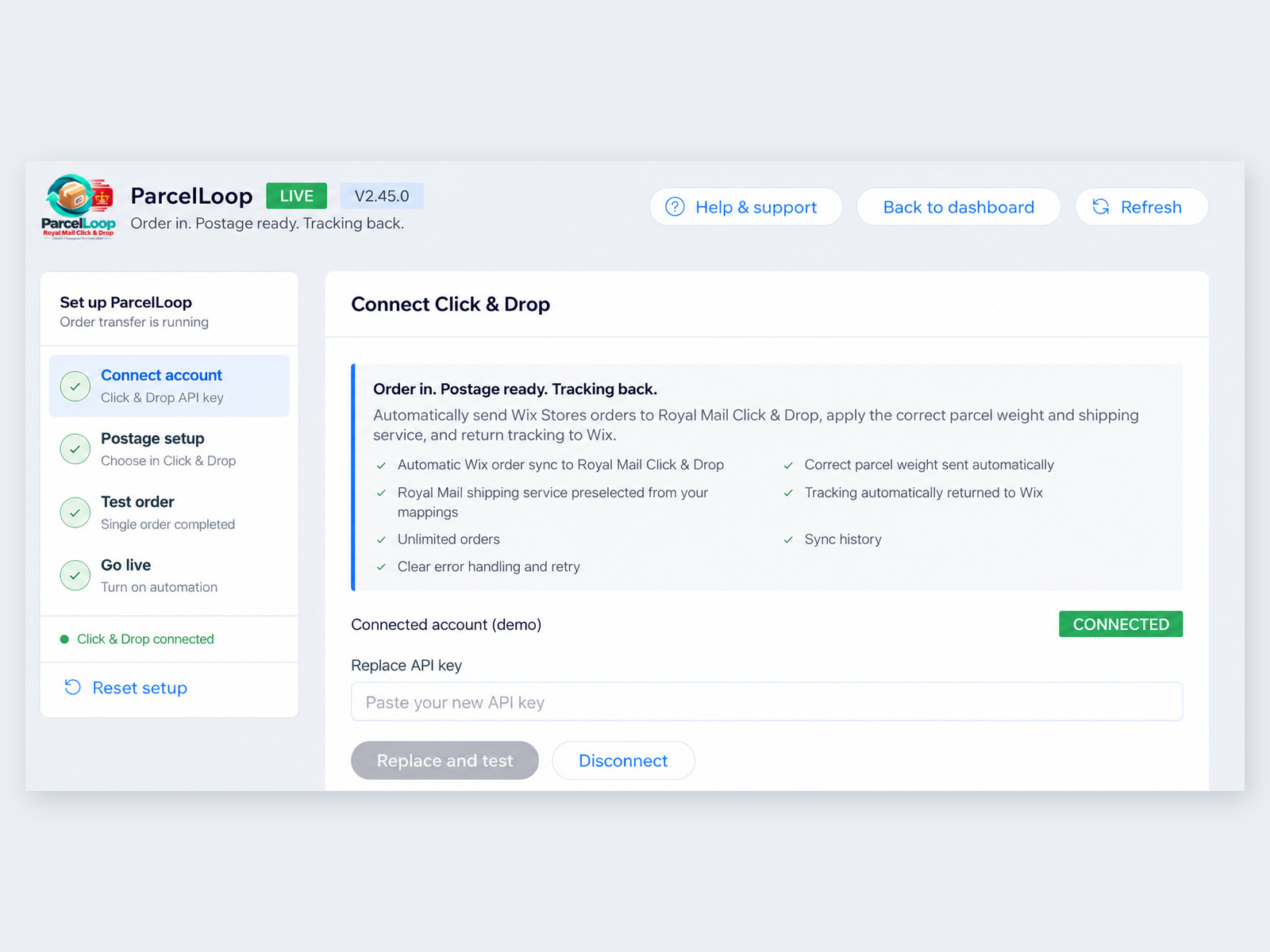
If a connection check fails, confirm that you copied the key from the correct Click & Drop API integration and that your account has the access needed. Do not share the key in a support message.
Map Wix shipping methods to Royal Mail services
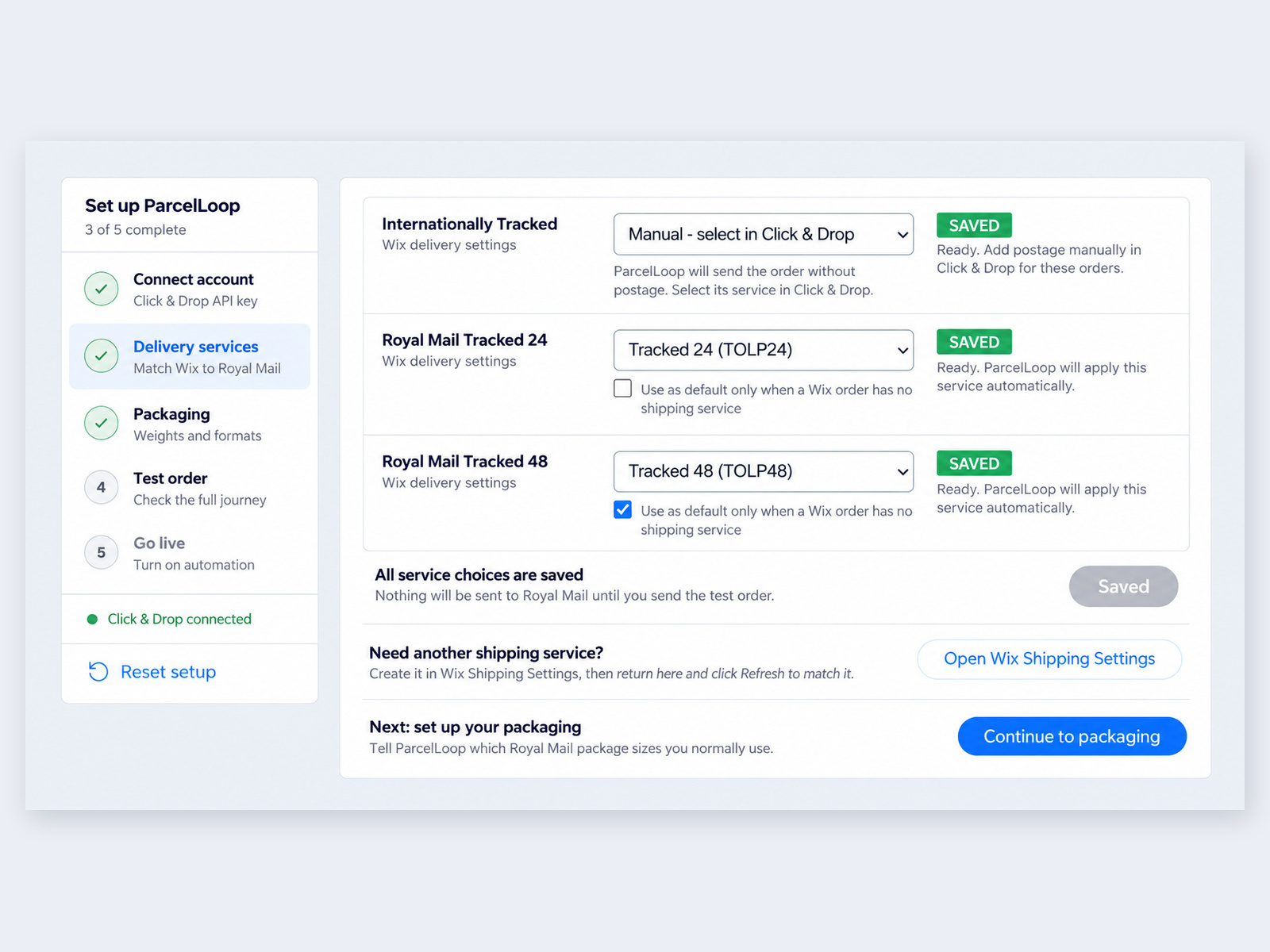
In ParcelLoop's Delivery services step, match each Wix delivery choice to the Royal Mail service you want to use. For example:
| Wix delivery choice | Royal Mail service |
|---|---|
| Royal Mail Tracked 24 | Tracked 24 |
| Royal Mail Tracked 48 | Tracked 48 |
Save each mapping. ParcelLoop then preselects the mapped service for matching orders. You can leave a choice manual if you prefer to select postage in Click & Drop, and you can configure a default for orders without a matching Wix service where the app offers that option.
Set parcel weights and formats
Royal Mail needs the weight of the packed shipment, including the product and packaging. In the Packaging step, set the formats you use, their maximum weights and which Wix products fit. ParcelLoop uses the configured product and packaging information to select a suitable format and send a weight.
If Wix product weights are missing or inaccurate, check the product or SKU weight options available in your ParcelLoop setup, or correct the product weights in Wix. Confirm the behaviour of your configuration during the test order rather than assuming an override is active.
| Illustrative order | Illustrative packed weight |
|---|---|
| 1 pouch | 150g |
| 2 pouches | 250g |
These are examples only. For mixed products, ParcelLoop combines the space each item uses against your configured package capacity and tries a suitable format. Check the actual packed weight and format with a mixed test order; if an order needs more than one parcel or unusual packing, review it in Click & Drop. Weigh your own products in their real packaging and use those actual packed weights.
Test the connection
- Create a test order in Wix using a shipping method you have mapped.
- Confirm that the order appears in ParcelLoop.
- Send or process the test and confirm it reaches Royal Mail Click & Drop.
- Check that the parcel weight, format and shipping service are correct before buying postage or printing a label.
- After tracking becomes available, check that it returns to the Wix order and that your customer notification settings behave as intended.
Test another order if you sell products with different weights or formats. If something is wrong, change the relevant setting and repeat the test before enabling live automation.
Turn on automatic syncing
Once the test order follows the full journey, use ParcelLoop's Go live step to turn on automation. Eligible orders can then flow from Wix to Click & Drop with your saved shipping choices. Keep an eye on the ParcelLoop dashboard for orders that need attention and review settings when your products or Royal Mail services change.